

You've had the same phone for over six months and it's still useful for work or whatever you need to do. The only problem when you've had one for a long time is the amount of data that gets stored on it. All the data or files you saved since you started using it are no longer needed, but they're still there. That's why your device is slow, takes a long time to load, or isn't working properly.
The iPhone 6 is a relatively modern, high-end model from Apple. Often, to save money, people buy them secondhand, and they end up with all the previous owner's files. Some of the problems caused by a device loaded with unnecessary files include system startup issues, application loading problems, slowed performance, and very often, the device freezes, leaving the user unsure of what to do.
Knowing this, we realize how essential cleaning your phone can be, whether you're selling it, have just bought a new one, it stops responding, or you feel it's not performing well enough. The good news is that there are several ways to reset an iPhone to its factory settings , and we'll explain them all.
Steps to reset your iPhone 6 and return it to factory settings
No matter how serious the problem is with your device, there's likely a simple way to fix it at home without needing a technician. A hard reset is a cure-all , as it erases all the data on your device and restores it to its factory settings . Below, we'll show you all the ways to perform a hard reset.
From iTunes
The first method we'll explain involves performing a hard reset using iTunes. This is one of the simplest ways and is ideal for iPhone 6 or iPhone 6s, even if you don't have an Apple ID.
- To begin with, Open iTunes on your PC and connect the device via the original USB cable.
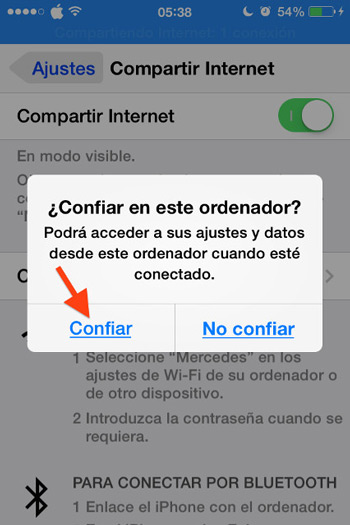
- Most likely, a message will appear that says “Trust this computer"on screen, to which we must say yes and follow the steps as indicated.
- Open iTunes and in the panel of Summary You must click on «Restore iPhone«.

- It will ask you for confirmation You must select "yes" in order for the iPhone to be restored.
- After confirming, the mobile phone will automatically restart and it will be like new.
From iCloud
Want to restore your iPhone to its factory settings, but don't want to lose important data? This is the right option for you.
iCloud is integrated by default on all Apple mobile devices. This system allows you to store and save all kinds of data and files in the cloud. Although many don't know how to use it, activating iCloud to create a backup where you can save your information and access it whenever you want is very simple.
Before performing the restart, we'll explain how to activate this iCloud option:
- On the device screen, navigate to «Settings» and look for the option «iCloud ".
- Inside there will be a menu with many options that may confuse you, but don't get carried away, just look for the one that says «Backup". This one is located almost at the very end, You must turn on the switch.
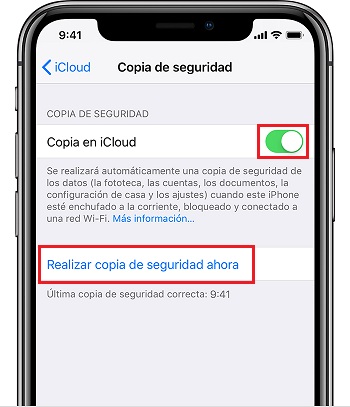
- Once it's active, all that's left is to charge the device and it will Connect to a Wi-Fi network to automatically perform the backup..
Now that you have a backup, you can proceed to perform a factory reset without any consequences by following the steps below.
- Go to «Settings» on mobile.
- Look for the option «General" and play it.
- Choose "Restore".
- A menu with a few options will open; look for the one that says «Delete content and settings.
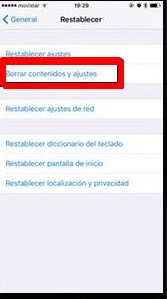
- There, choose «Delete iPhone ».
- It will then ask for your iCloud password and details, and for «Search my Iphone«, if you have it activated.
- Once they provide the information, the Apple logo will appear on the screen and the team will begin to startThis process takes no more than 5 minutes.
Using the basic buttons
When a computer freezes and there's no way to restart, shut down, or get it working normally again, it's common to panic and want to take it straight to a technician and spend money on repairs. But before you do that, try fixing it yourself at home or wherever you are; it's very easy.
Almost all computers have built-in systems to access the configuration menu and force a restart or power-up in cases like this, and it is not necessary to have computer knowledge or technological tools.
Simply follow the steps below.
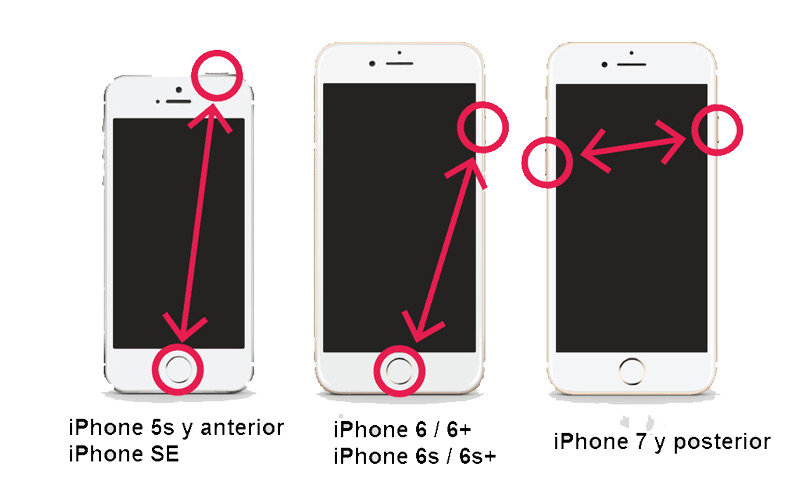
If the computer has run out of battery after hours of being stuck on a static image where nothing could be done, or if it is still lagging, this method can be used.
- First, hold it with one hand and make sure you have the other one free.
- You squeeze and release quickly the button Turn up the volume for about 10 seconds.
- Repeat the previous step, but with the Press and hold the volume down button for 10 more seconds.
- Lastly, you must hold down the power button until you see the Apple logo on the screen.
From recovery mode
The Recovery mode or system included in the iOS operating system is a mode that allows you to recover an iPhone or iPad by accessing the system again after serious errors that have caused it to stop working, making it impossible to even boot up.
This is especially ideal when iTunes doesn't recognize the device, when it's stuck in a bootloop , or for any other reason you want to restore it to factory settings. It's important to note that this method will erase all data and install the latest version of iOS.
- To enter Recovery mode or emergency recovery mode, you must Connect the device to your Mac and open iTunes.Even if it's not recognized, you should still follow the steps.
- Now you must force restart iPhoneTo do this, press the home button and the power button simultaneously until the iTunes connection appears on the screen, as in the following image.

- The team will recognize the forced restart A message will appear on the screen with the option to update or restore; click on restore and you can enjoy your mobile phone like new after a few minutes of the process.

From the phone
As a preventative measure to avoid damaging your phone , you can perform a factory reset while it's still functional and the entire process can be completed within the same interface. To do this, follow the steps below.
- Hold down the iPhone power button until a slider bar appears on the screen and slide it to the right.
- Let it turn off.
- turn it on again and you will have completed a Soft reset which frees up RAM memory to reset the operating system.









Comments are closed.