Programming is the foundation of today's digital world. Since its inception, we have continuously improved and developed new languages that allow us to create more efficient programs and websites.
It is precisely in the field of web development where the most changes have occurred so far in the 21st century. PHP is a programming language used to create applications that can run on a computer or mobile device.
Files containing PHP source code have the extension with the same acronym. These can contain the coded structure of an application or part of it, and can be copied to create another app based on the original.
What are .PHP files and what are they used for?

Files with the .PHP extension are known as a server-side scripting language . They are used in web development, as well as being a standard programming language.
This file was created by Rasmus Lerdorf in 1995 and is now installed on at least 240 million websites . It represents web pages containing code written in a programming language. These files contain code used to execute specific online processes.
A web server's PHP engine deciphers the PHP character contained in the pattern and quickly creates the HTML code from it. This character can be used by the person accessing the website, which is why the pattern and the PHP file cannot be visible to the user.
How to open and edit .PHP files from any computer?
Although a PHP file acquires this extension because of the code contained within it, this is nothing more than a simple set of text, so any basic word processor like Windows "Notepad" can easily read it.
Below we show you how to open these files on the main operating systems:
From windows
Opening a PHP file in Windows is extremely simple, as any text editor can both view and edit these types of files. Therefore, for this task, we will use Notepad , which comes pre-installed on computers with Microsoft operating systems.
- What you need to do is locate the file PHP that you want to view, and once you have done this, simply right-click on it.
- From the options that will appear, select "Open with", which will open a window where you must select the option "Select a program from the list of installed programs".
- Once the program explorer opens, you must click on "Notebook".
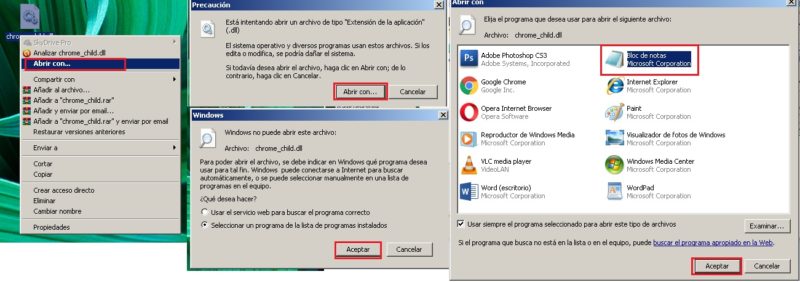
Once you've done all this, the program will start automatically, and you'll be able to see every single line of code in the file. Understanding its contents requires advanced programming knowledge of this language.
On Mac computers
You need to download and install BBEdit , a free program that lets you view and edit various formats, including PHP. To install it, follow these steps:
Download BBEdit 12 for Mac
Now open Spotlight . To do this, go to the magnifying glass icon in the top left corner of the screen, type "BBEDIT" and double-click it, which will bring up a drop-down menu.
If this is the first time you've opened BBEdit after installing it, you must click the "Open" button when prompted, and then click "Continue" to start a thirty-day trial.
Now that you are in the program, you must click on "File" in the menu bar at the top of the screen, and from the options that appear, select "Open".

Next, you need to go to the location where the PHP file is saved, click on it, and select it . Finally, click on it, and this will open the PHP file in BBEdit , allowing you to view the text it contains.
On Linux
To open a file in Linux, you need to download the VI application, although you can also use the free version, VI-M, which comes pre-installed. This is a text editor that helps you edit the large number of files you have.
To open a PHP file in your Vi editor, simply follow these steps:
- Enter the file name. For a file called php.txt, you would use php.txt.
- When this opens, you must press the key on the keyboard "insert" with the intention of entering edit mode.
- Likewise, the key "Esc" It helps you exit edit mode, but not the VI editor.
It's worth noting that VI's interface is unlike that of other text editors. In this case, you'll need some technical knowledge to execute each of the commands required to use the tool.
How to run a .Php file?
We've already shown you how to open it, but how do you run these files? You might need to run one containing a script that can help you solve a problem. Below, we'll show you how to do it on different platforms.
In XAMPP
This application helps you test multiple websites on your computer if you need to launch a web server online. With it, you can easily run one or more PHP files simultaneously. Simply install the program and follow the steps below:
- Start the program. It will load in the system tray. Click the XAMPP icon to expand the control panel.
- To continue, click the button. "Start" beside "Apache" so that the Apache web server can start. When it's running, you'll see the word appear next to it. "In action" highlighted in green. You will also need to run «MySQL» in case your scripts require a database to function.
- Next, place the PHP files you want to run in the folder "Htdocs", This is located within "XAMMP" on drive C. The files must have the extension ".Php".
- Now what you need to do is open any of the browsers you use and enter "Localhost". A list of the files stored in the folder will automatically open. "Htdocs" within "XAMP". Click on a PHP file link and open it to run a script.
From the terminal or CMD
Running a file from the terminal requires some technical knowledge, but we'll explain it to you in the clearest way possible. Before starting, you need to configure your Windows operating system to run PHP files. To do this, you need a root program that allows PHP to run, such as WAMP or MAMP.
Once you have it, here's what you need to do:
- Go to the folder within MAMP where the PHP file is saved and copy the path. This is usually "C:\wamp\bin\php\php5.6.8".
- Now you must go to "Control Panel" and in the section "Security system"We chose "System" and later "Advanced system settings" and later "Environment Variables".

- Once here you must select the variable "PATH" and you press "Edit". In the second field of the variable, you will see a path. Add a semicolon (;) to the end of this path, then copy the path to the PHP file, and finally click on [the appropriate button/button]. "To accept" for the changes to be saved.
After this, you'll have everything you need to run PHP from the terminal, which is a bit easier than the previous method. Here's what you need to do:
- Press the keys "Ctrl+R" so that the window opens "Run" in which you must write "CMD" to open the terminal.
- Once the terminal is open, you must type the path where the PHP file is saved in order to run it.
List of the best alternative applications and programs to open a .php document without using Notepad++
Besides Notepad++ , there are other programs that can read PHP documents without problems. Below are some of the best alternatives.
PHP Compiler
It's a tool for compiling a PHP script into an .exe file . This file is a window-based application program that can be used without a web browser. Using it requires specific technical knowledge.
PHPMySQL
This is an easy-to-use program that allows you to create multiple PHP pages that manage MySQL databases . It also allows you to open existing files to view their contents.