

The name "Inbox by Gmail" might sound unfamiliar. For most Google account users, email management is typically handled through the well-known Gmail platform , the most standardized and even present on Android mobile devices. However, there's an alternative much more geared towards casual users —those who aren't as active on their email and only check it occasionally, either for a quick glance or to see if the details of that reservation they made a while ago have arrived.
This service, Inbox, was launched in 2014 as an alternative for those seeking a more relaxed experience. Initially, it was an invitation-only system, but this requirement was quickly eliminated, and now anyone can join and start using it. Available in virtually every language , accessing it is almost as simple as registering an account on their platform.
In fact, you don't even need to do this last step. If you want to know how to create a free Inbox account in Spanish , you're in for a pleasant surprise. In this guide, we'll explain all the steps you need to follow to open an Inbox or Google account ; the main differences between this platform and its parent company, Gmail; and, of course, how to log in to Inbox.
Is it necessary to open a new Inbox account?
These three key questions will help you understand everything you need to know to decide whether to try this email system, which is much lighter and more user-friendly than the traditional one from the tech giant. In fact, it could even be described as a social network for email.
When starting to use Inbox , the most notable thing is that you don't need to create an account . This service is fully integrated with Google's Gmail . Therefore, if you already have a Google account, you can access it without any problems.
If you don't have one, you must complete all the necessary steps to open a new Google account:
The first thing you need to do is go to the website set up to register a Google account . It's a very simple step; just open your favorite browser, go to the address bar at the top of the window, and enter the following URL: https://accounts.google.com/signup.
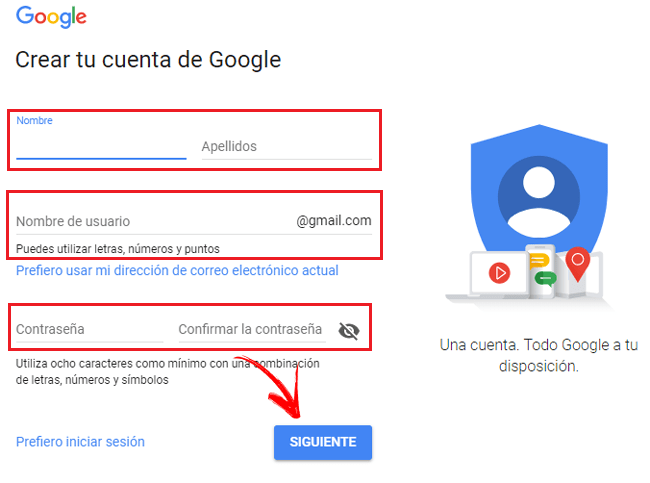
Once inside, on the right-hand side you'll find a small form with some information you need to enter. Fill in the fields for your first and last name and your username. Keep in mind that this is the username that will connect to your Gmail account.
Next , enter your password and confirm it (it must be personal and non-transferable, and preferably alphanumeric, with uppercase and lowercase letters). Also, enter your date of birth, gender, phone number, and current email address . The last two are important, as they are used to validate the account and also to link your mobile phone for more secure logins on future visits.
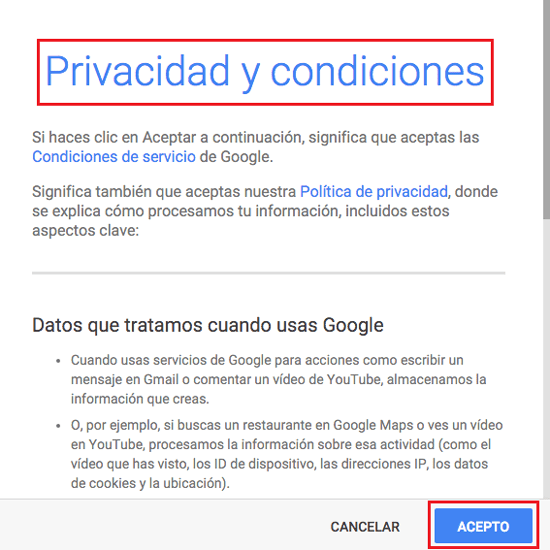
After completing the previous step, a pop-up window will appear with information about Google's privacy and terms . Click the "I agree" button to continue; otherwise, you will not be able to create your Google account.
You've now completed the Google account creation process . Once you've accepted the company's terms of service, you can proceed to start enjoying all the benefits Google offers. However, this time, we're most interested in using Inbox . Having completed this process, you can now use Inbox as much as you like, as you can easily log in from here.
How do I log in to my Inbox account?
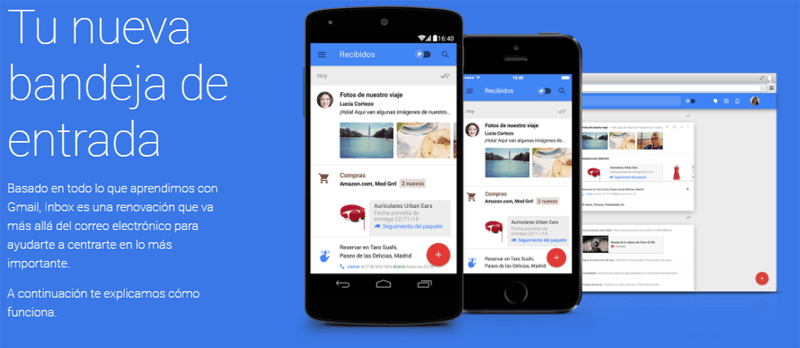
The Inbox login process can even be automatic if you already have a Google account signed in to your device. However, if this isn't the case, it's helpful to know the steps to log in from a computer, Android, or iOS device. How do I access my Inbox account? Here's a more detailed explanation:
From the computer
To log in to your Inbox account from your PC or computer, the first thing you need to do is open your trusted web browser and enter the following URL in the address bar: inbox.google.com.
You will automatically be redirected to the Google login menu . Now, enter the email address or phone number linked to your Google account. Do so and click " Next ."
After this, all that remains is to enter the password assigned to your profile. Remember that uppercase and lowercase letters are important. Once you have completed this field, click on “Next”.
Once you've done this, you'll be inside Inbox . You're now logged in on your PC and can start exploring everything this system offers and how different it is from traditional Gmail. We can tell you in advance that, at least visually, it's a whole different world.
From Android and iOS mobile devices
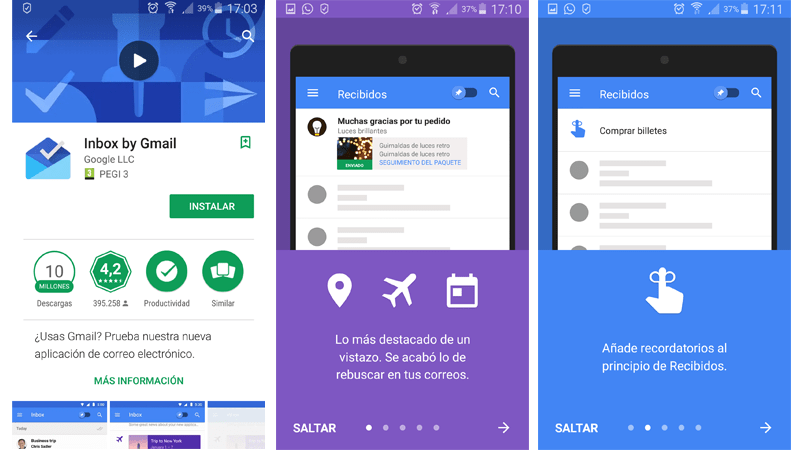
From your Android or iOS mobile device, you can log in via a web browser , following the same steps explained earlier, or you can use the native app for both devices . If you're using an Android device, go to the Google Play Store; if you're using an iOS device, go to the App Store.
In both cases, once you enter the relevant store, go to the search section and type " Inbox ." You'll see " Inbox by Gmail " as the first suggested result. That's the option you should tap, as it's the company's official app.
Once you do that and access its description page, simply tap the download or install button , and the system will automatically transfer all the files to your phone and install the app. In a matter of seconds, or minutes if you don't have a good connection, you'll have the program on your phone.
Now, find the app section on your smartphone and locate it. You'll recognize it by its icon: a blue envelope with a white checkmark. Tap on it to launch the application.
By doing so, if you already have a Google account linked to the device, the session will start automatically , without you having to take any further steps. Otherwise, you'll just need to enter your account details, as explained in the previous section. This way, you can enjoy the distinctive feel of Inbox on your smartphone as well. A more relaxed email experience.
Differences between a Gmail account and Inbox
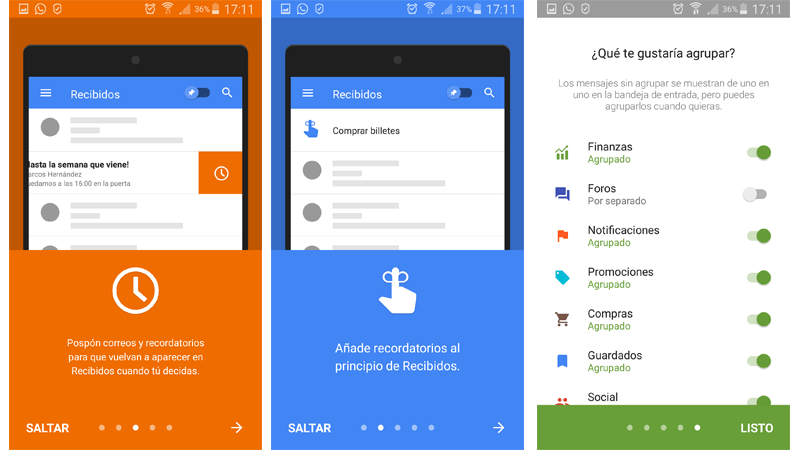
There's no difference between a Gmail account and Inbox . The reason is that Inbox is simply a different email client than Google's traditional email service. It's much more accessible, easier to use, and requires far fewer settings and parameters . Furthermore, as we've already explained, to access it you only need a Google or Gmail account.
What we can discuss are the differences between the Gmail and Inbox clients. In this respect, there are indeed elements that differ considerably, and we will now discuss the main ones:
- Greater interactivity: Unlike Gmail, Inbox learns what you like best. In a way, it acts similarly to a social network. While Google's traditional client organizes everything and separates it into categories so you know exactly what to look for and where to find it, Inbox has a much more relaxed style, designed for those who don't rely on email constantly. If you want to check a reservation you've made or read an email you've received, it's a good choice. In fact, as you use it, it learns your preferences and tries to always show them first so you can find what you're looking for directly.
- See before you read: If you receive an email with attached documents, this manager shows you a preview without you having to open it. In Gmail, you'd have to open the email and see the preview from there. In Inbox, however, it appears without even opening it. It's much more convenient.
- Special functions: Inbox has a number of specific and special features that set it apart from any other email system. First, it has a reminder system that can be incredibly useful for remembering appointments or events; but it also includes, for example, the ability to call the email sender directly by phone, without needing to access a contact list or anything like that.










Comments are closed.